
TrackPatch
Use your Apple Watch or iPhone
as a trackpad or mouse for your Mac.


Free, with no ads. Made by a small non-profit in Japan. About us
Control your Mac from across the room
- Pause a video from bed
- Scroll a recipe while cooking
- Advance slides while presenting
With an Apple Watch, you can control your Mac without touching it.
- From your Apple Watch — just raise your wrist.
- From your iPhone — a larger surface, and you can send text.
Use your iPhone as a trackpad or mouse
- Your mouse stopped working? Pick up your iPhone and keep going until it's back.
- Type on your Mac from your iPhone. The text appears as you type.
- No Wi-Fi network needed. Your iPhone connects to your Mac directly over Bluetooth.
What you need
| Device | Required OS |
|---|---|
| Mac | macOS 14 or later |
| Apple Watch | watchOS 11 or later |
| iPhone | iOS 18 or later (iOS 17 or later if not using Apple Watch) |
Once you have set it up on your iPhone, your Apple Watch works on its own.
Getting started
-
Install the companion app on your Mac
The Apple Watch and iPhone apps do not work on their own. Install the app that receives the input on your Mac.

-
Open the app on your Mac
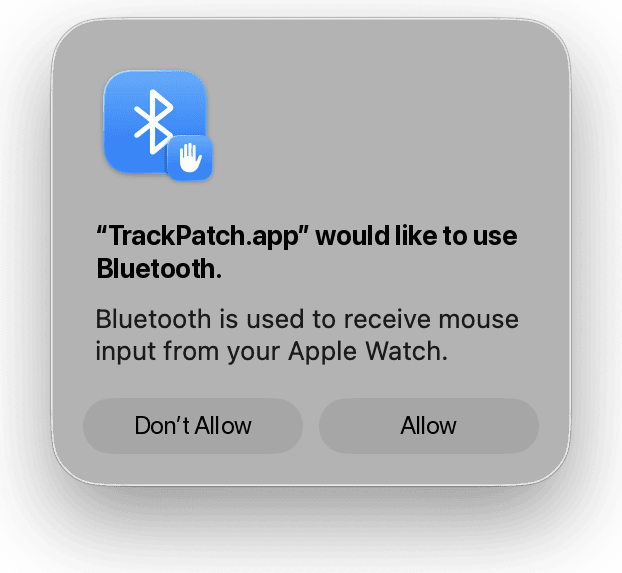
The first time you open it, macOS asks for two permissions, one after the other.
First: Bluetooth
Click Allow in the dialog that appears. This is what lets your Apple Watch and iPhone connect.
Second: mouse control
You cannot grant this one from inside the app. TrackPatch explains it first. Click Allow mouse control, then Open System Settings, and turn on TrackPatch in the list yourself. If it is not listed, add it with +.
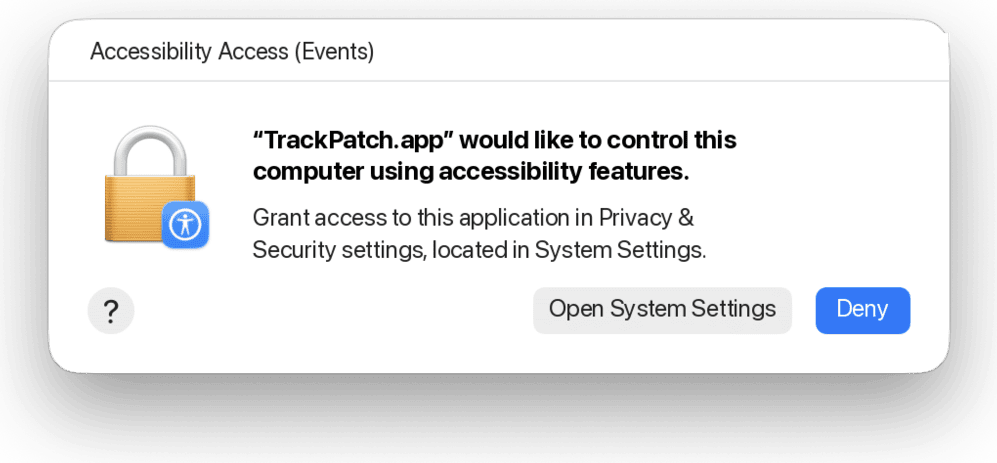
This dialog comes first. Continue to Open System Settings. 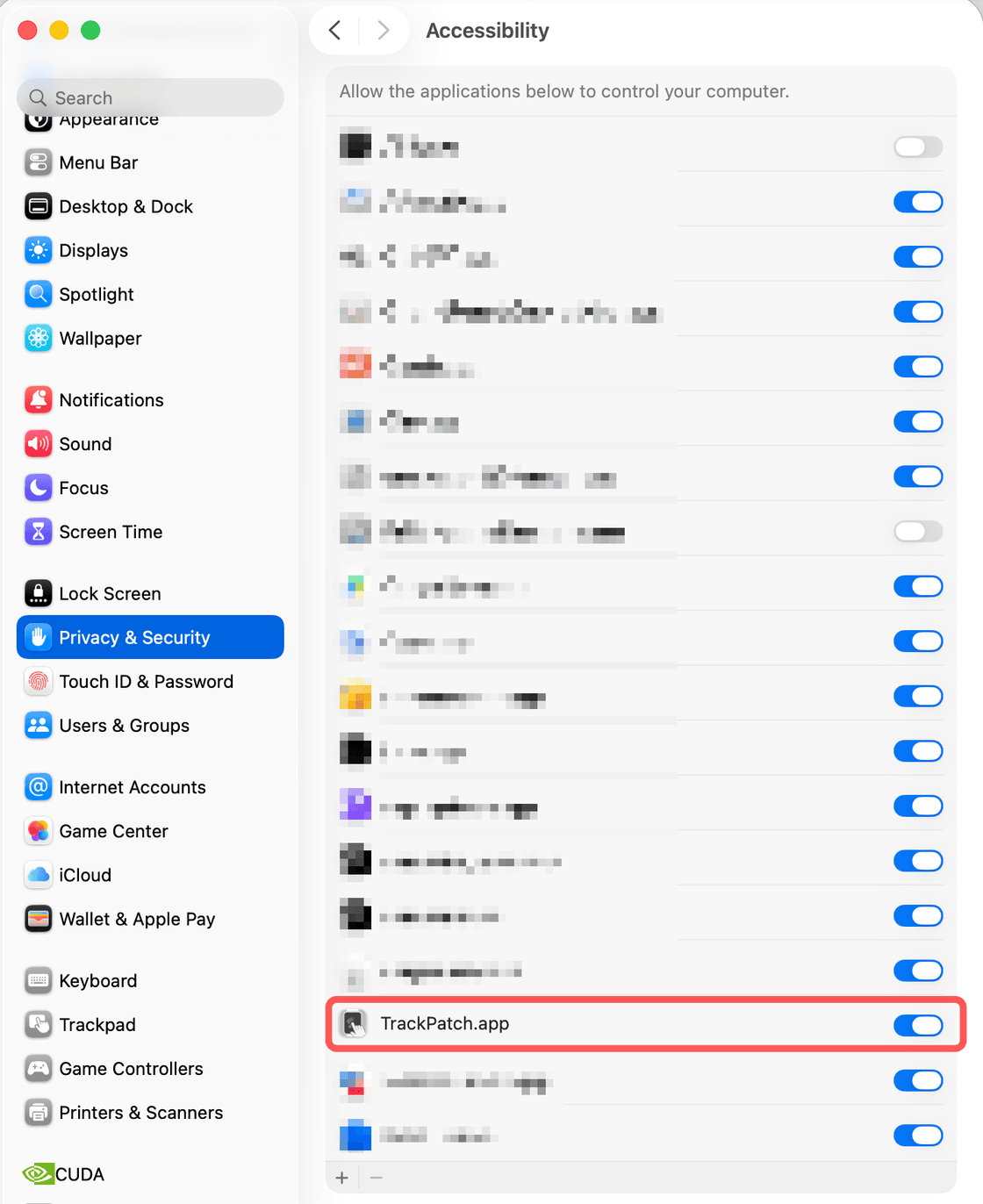
Turn on TrackPatch.app in the list yourself. If it is missing, add it with the + button at the bottom left. If you pressed Deny by mistake
System Settings → Privacy & Security → Accessibility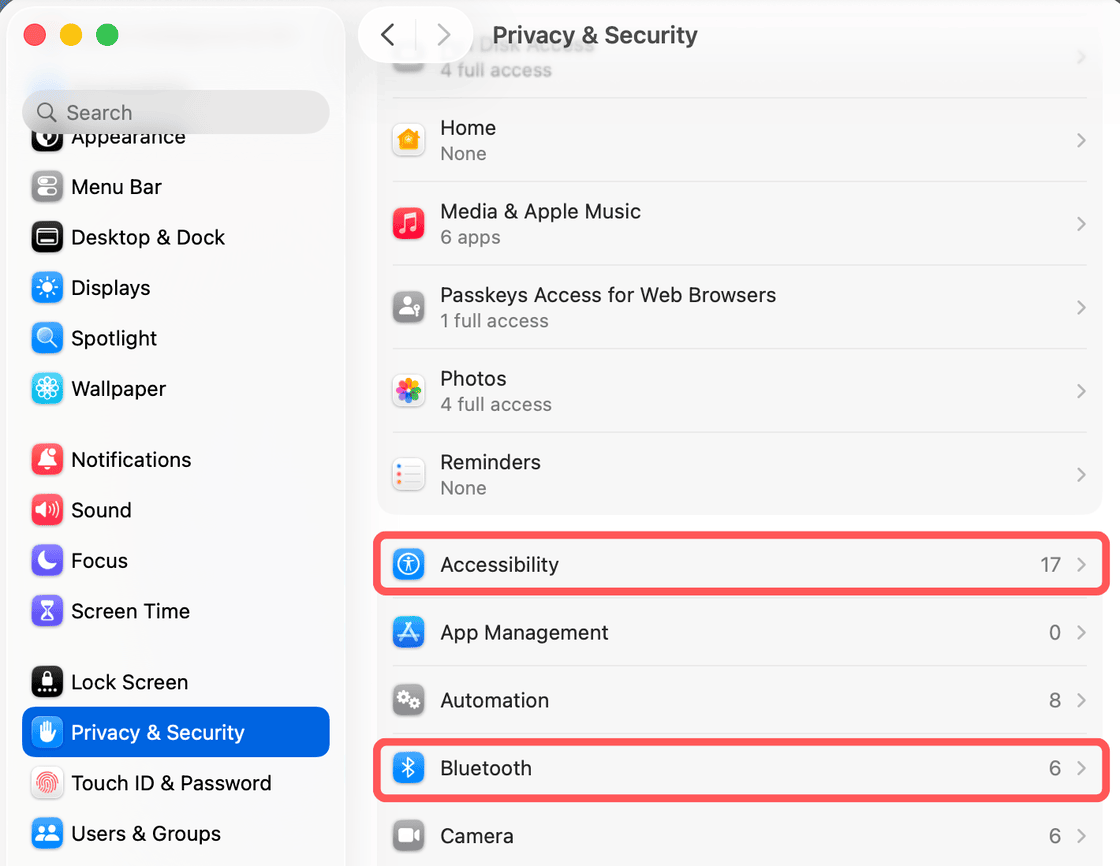
Where to find it. This is where most people get stuck. Once you turn it on, this appears. Press Reopen.
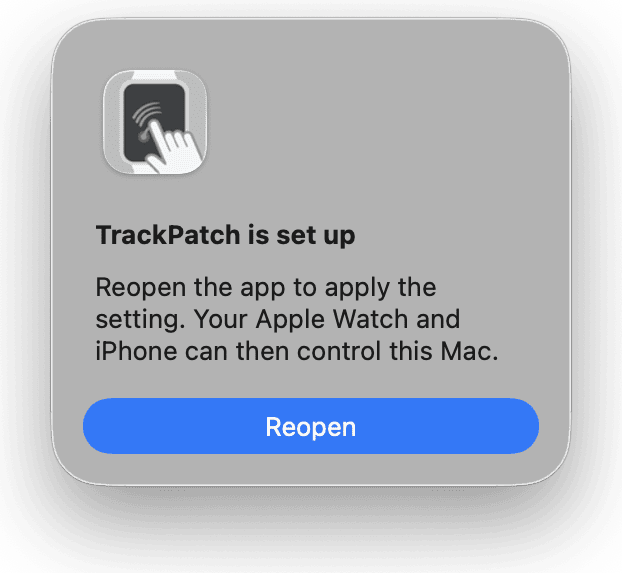
This applies the setting and reopens the app. Until you reopen it, your Apple Watch and iPhone cannot control your Mac. The menu bar icon is there from the start. While your Mac is not connected, the icon has a slash through it. Once permissions are granted and it connects, the slash disappears.
Not connected (slashed) Connected (no slash)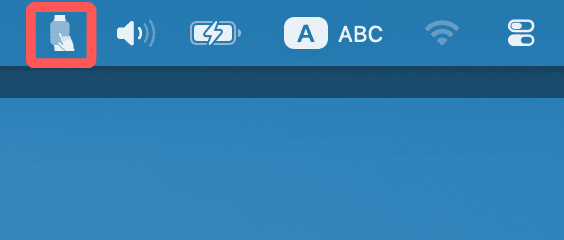
-
Open the app on your Apple Watch or iPhone
Install TrackPatch from the App Store and open it. Installing the iPhone app also installs the Apple Watch app.
The first time you open it, you are asked to allow Bluetooth. Choose Allow so it can connect to your Mac.
iPhone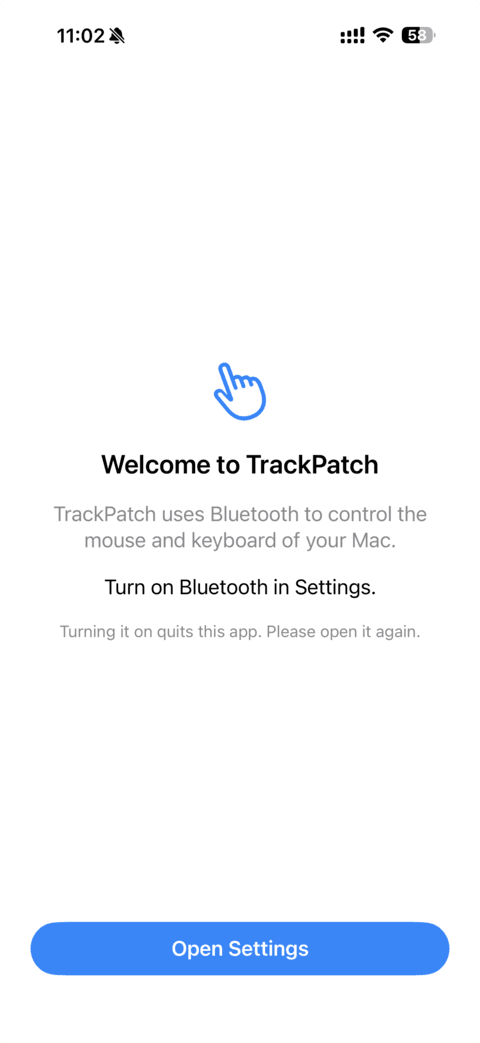
This is what you see when Bluetooth is off. Continue from Open Settings. Turning it on quits the app, so open it again afterwards. -
Connect
If your Mac uses the same Apple Account, it connects with no setup at all.
With a different Apple Account, a four-digit number appears on your Mac. The same number appears on your Apple Watch. Check that they match, then press Allow.
Apple Watch Mac
Mac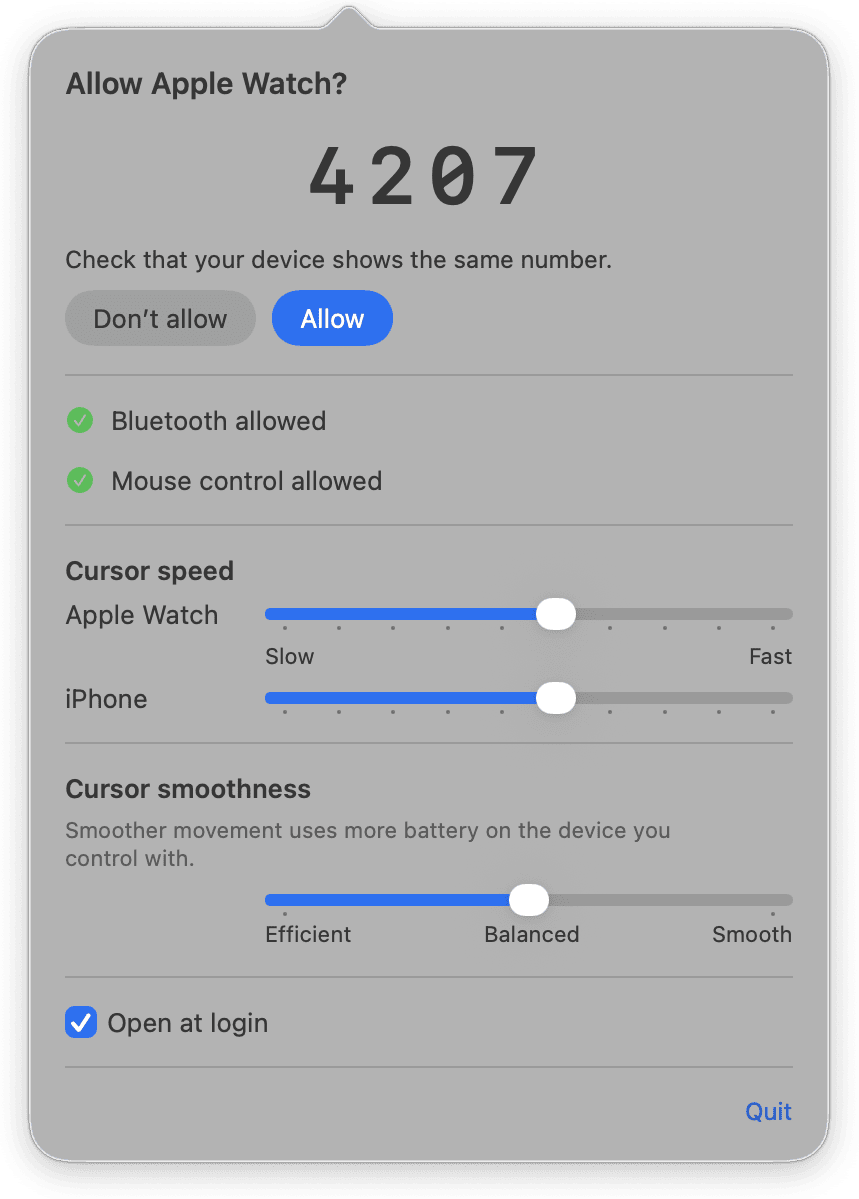
On your Mac it appears in the menu bar panel. If the numbers match, press Allow.
Gestures
Apple Watch
The whole screen is the trackpad. Touch it anywhere.
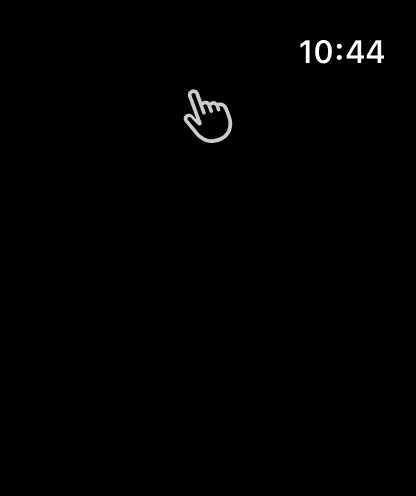
| Gesture | What it does |
|---|---|
| Slide one finger | Move the cursor |
| Tap one finger | Click |
| Double-tap one finger | Double-click |
| Hold one finger | The device vibrates, then drag and drop |
| Tap two fingers | Secondary click |
| Hold two fingers | Move the cursor onto the shortcut menu, then lift your finger to choose |
| Slide two fingers | Scroll |
| Pinch open / close | Zoom in / out |
| Turn the Digital Crown | Scroll vertically |
| Slide to the edge of the screen | Keep the cursor moving |
The screen changes as you go
The edge of the screen glows while you work. The color in the corner of your eye tells you whether you got the gesture you meant.
 Dragging
 Menu
Menu Scrolling
 Zooming
 Screen edge
iPhone
Everything the Apple Watch does, plus you can send text.
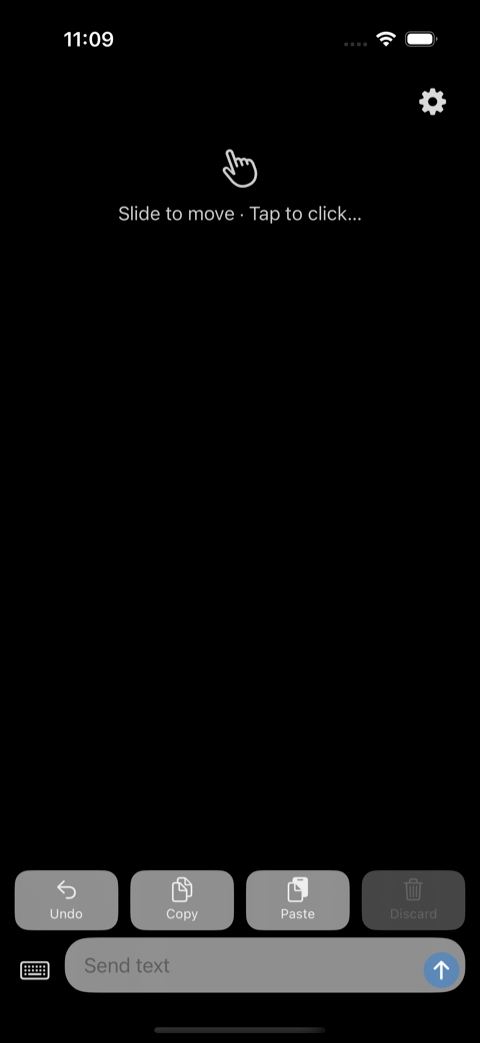
Sending text
- On your Mac, click where you want the text to go
- Tap the text field on your iPhone
- Type. The text lands on your Mac as you type
- Press the send button (↑) to finish. The keyboard closes
Line breaks work too. Because the text arrives as you type, you can watch your Mac and fix it there and then.
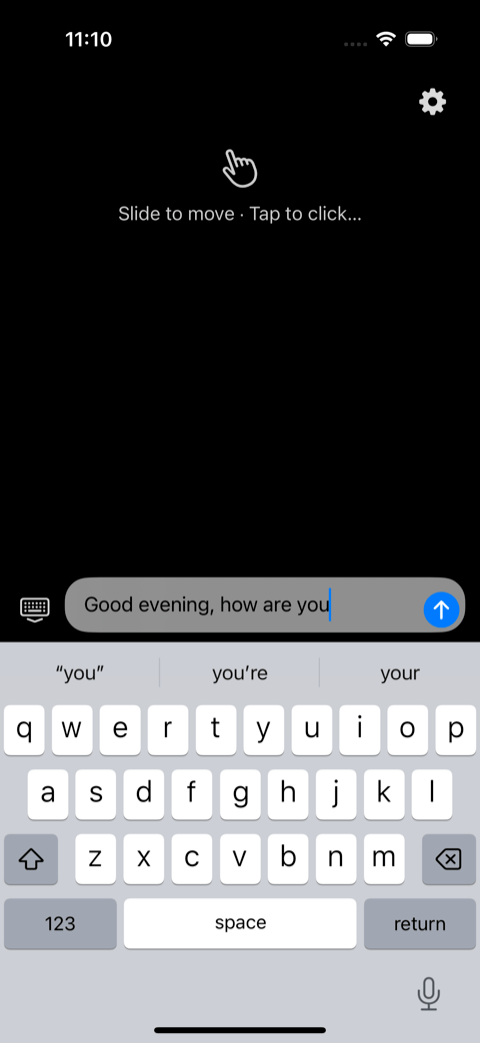
Editing text that is already on your Mac
You can bring text from your Mac into your iPhone and correct it there — by touch or by dictation.
- Use the trackpad to drag across the text on your Mac and select it
- Tap the text field on your iPhone. The selected text appears in it
- Correct it
- Press the send button (↑) to finish
The cursor follows along. Press backspace at the start of the text field and the character just before your selection is deleted on the Mac.
To stop, press Discard. Your Mac goes back to the text you started with.
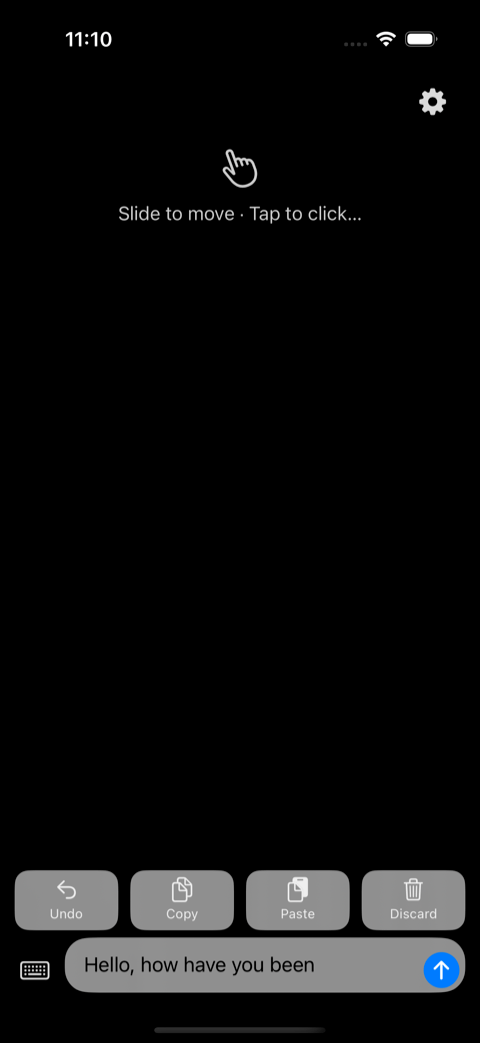
⌘Z / ⌘C / ⌘V from your hand
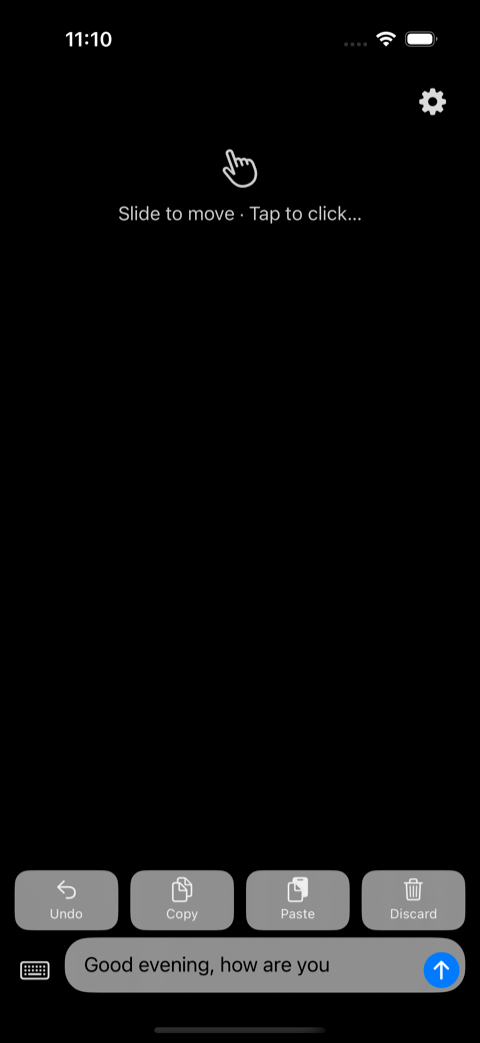
There are four buttons above the text field. All of them act on your Mac.
| Button | What happens on your Mac |
|---|---|
| Undo | ⌘Z |
| Copy | ⌘C (copies the selected text) |
| Paste | ⌘V (pastes what was copied) |
| Discard | Throws away what you typed, and puts your Mac back |
They hide while the keyboard is open. The iPhone keyboard shows the same symbols, and side by side you could not tell which ones reach your Mac.
When you already have something typed
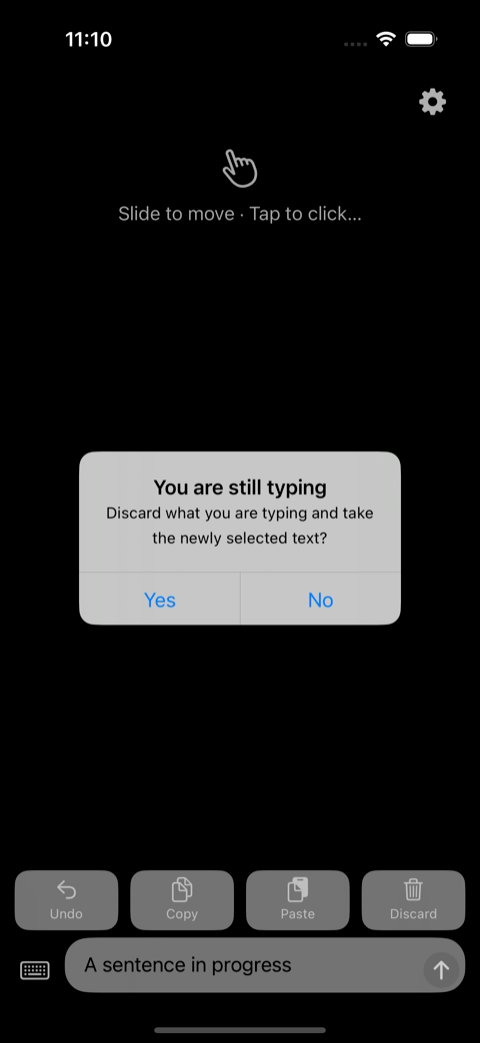
If you have something typed in the TrackPatch text field and then select text on your Mac, the app asks first.
Discard what you are typing and take the newly selected text?
Yes No
- Yes: throws away what you typed, puts your Mac back, and takes the newly selected text
- No: carries on as you were
The text on your Mac may change while the app is closed, so going back to the Home Screen ends the editing session. What you already sent stays on the Mac.
Cursor settings
Click the menu bar icon on your Mac and you get two settings. Both live on the Mac. Changes reach your device right away.
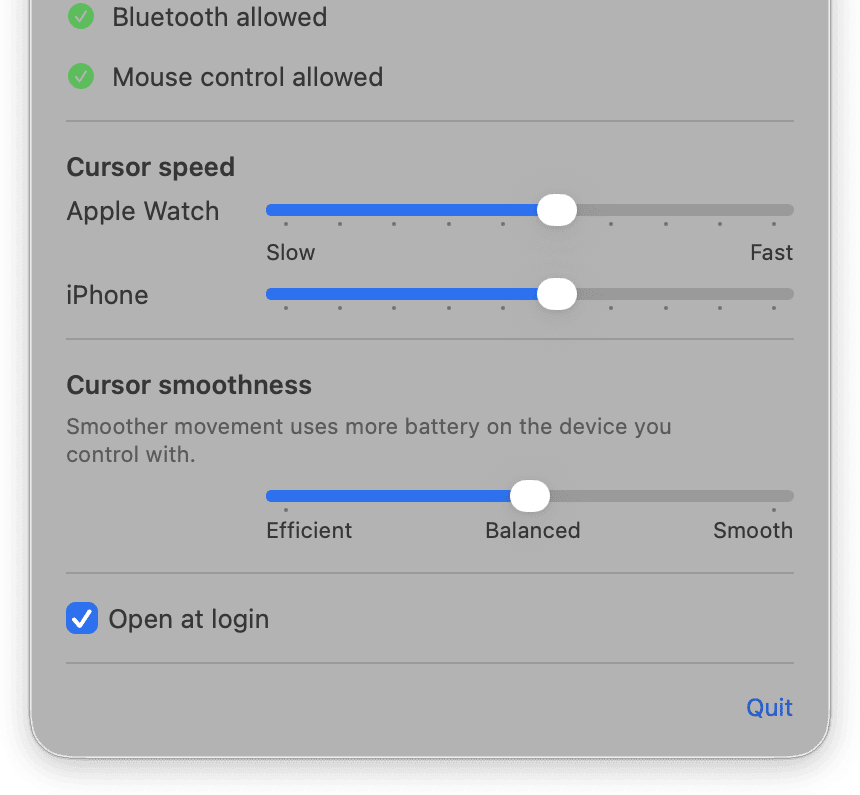
Cursor speed
Set the Apple Watch and the iPhone separately.
Cursor smoothness
Smoother movement uses more battery on the device you control with.
Scroll direction
This follows your Mac. Change Natural scrolling in System Settings and TrackPatch changes with it.
One device at a time
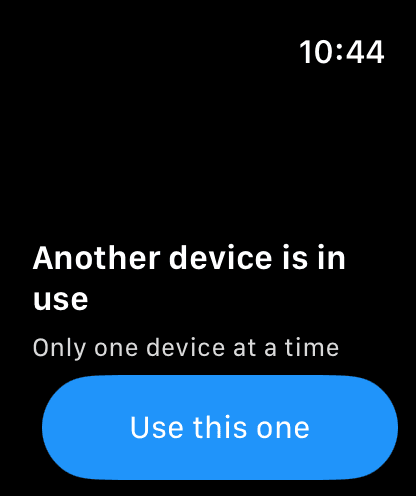
You cannot use your Apple Watch and iPhone at the same time.
Whichever you open second says Another device is in use. Press Use this one and you can control your Mac from it right away. Switch back and forth as often as you like.
Made by a small non-profit
TrackPatch is made by Hanihohetoilo, a non-profit community in Tokyo where children, parents and people of every generation teach each other. Programming, AI, game making, illustration, music — anything digital, we learn it together.
The app is completely free. It never shows intrusive ads, and it never collects your information. What keeps it going is support from the people who find it useful.
Troubleshooting
It will not connect to your Mac
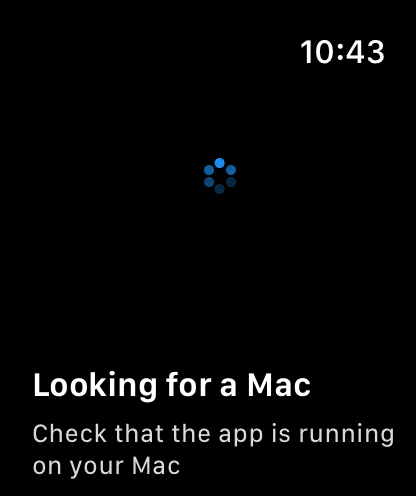
Your Mac is not found
Is the app open on your Mac? Check that the icon is in the menu bar. A slash through the icon means it has not connected yet. When the slash disappears, you are connected.
After you restart your Mac, the app may not open on its own. Open it again from your Applications folder.
Click the menu bar icon and tick Open at login, and TrackPatch will start whenever your Mac does.
It disconnects while you are using it
Your Apple Watch or iPhone may be too far from your Mac. Move within Bluetooth range.
Check the permissions on your Mac
The cursor does not move
Mouse control may not be allowed on your Mac. Check that TrackPatch is turned on here.
System Settings → Privacy & Security → AccessibilityAfter you update the app, the permission is sometimes dropped. Remove TrackPatch from the list and add it again with +.
Your Mac will not accept the connection
Your Mac needs to allow Bluetooth. Check that TrackPatch is turned on here.
System Settings → Privacy & Security → Bluetooth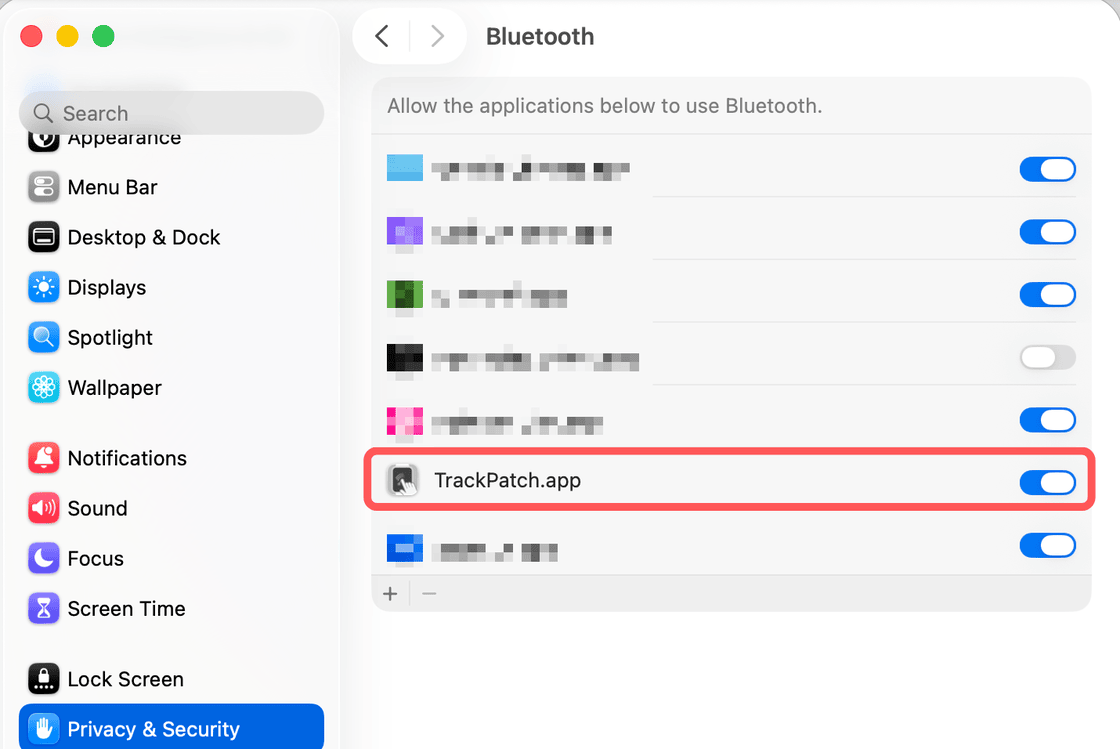
It will not connect after you change a Bluetooth setting
When you change the Bluetooth permission, macOS says the app cannot reach Bluetooth until it quits, and offers Quit & Reopen or Later.
Choosing Later leaves it in this state. Quit the app and open it again. You can also quit from the menu bar panel.
Check the permissions on your Apple Watch or iPhone
Your Apple Watch says “Bluetooth permission”
You cannot change this from the Apple Watch. The setting only exists on the iPhone.
Press Notify my iPhone on the screen. A notification arrives on your iPhone, and tapping it opens Settings.
The notification sometimes arrives quietly, with no sound. Check your iPhone’s Notification Center. Choose Deliver Prominently on a notification once and later ones will make a sound.
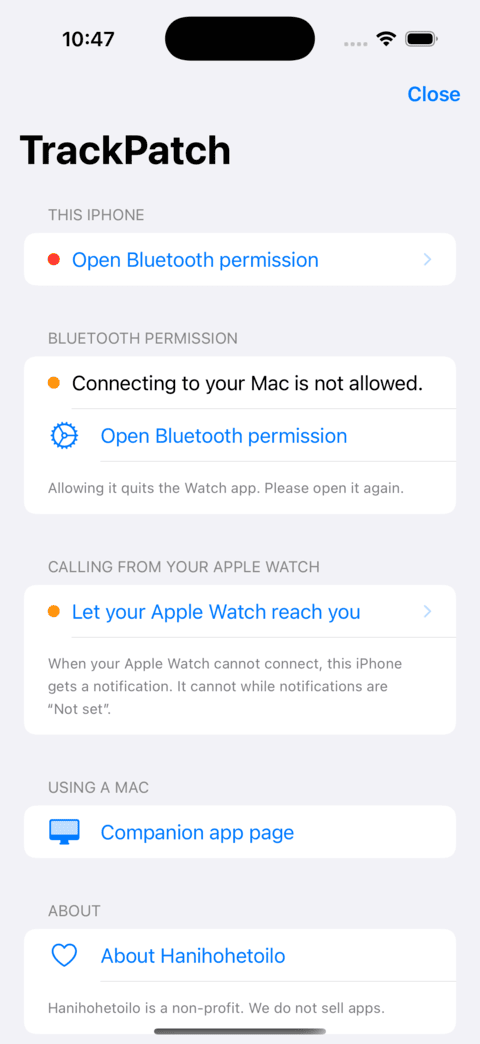
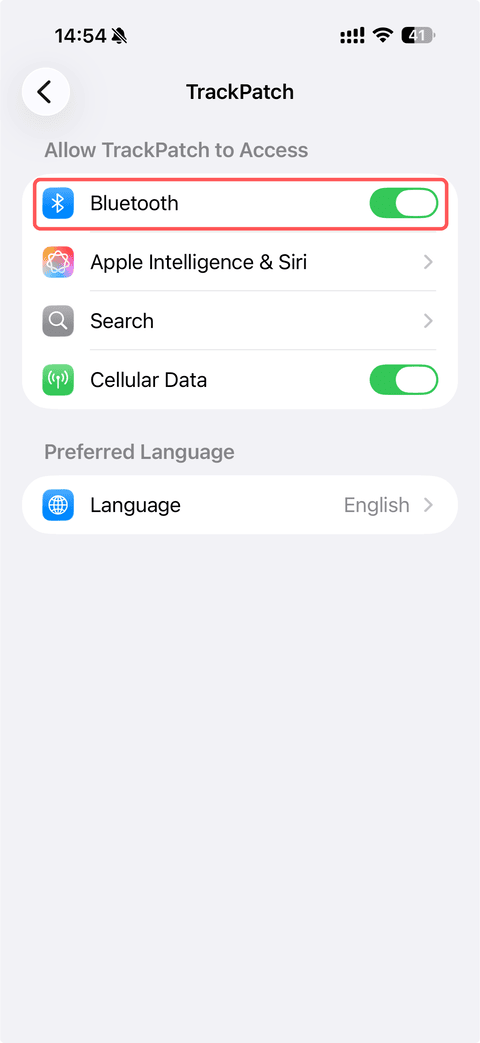
If no notification arrives, open the Settings app on your iPhone and search for “TrackPatch”. You can turn on Bluetooth from that screen.
iPhone Settings → TrackPatch → Bluetooth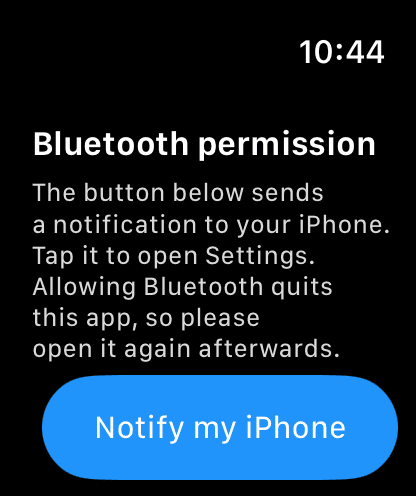
When nothing else works
You checked every setting and it still will not connect
When nothing else works, restart your Apple Watch or iPhone and open the app again. If it still will not connect, restart your Mac, make sure the Mac version of TrackPatch is running, and try once more.
For reference, these are the supported devices.
| Device | Required OS |
|---|---|
| Mac | macOS 14 or later |
| Apple Watch | watchOS 11 or later |
| iPhone | iOS 18 or later (iOS 17 or later if not using Apple Watch) |
You cannot send text from your iPhone
The send button is dim
The text field is empty. Type something into the text field and it becomes active.
You typed, but nothing changed on your Mac
There may be nowhere to type on your Mac. Click a note or another text area first, then try again.
You were editing, and something else changed instead
Moving the cursor on your Mac while you are editing shifts the position. Press Discard, or Undo (⌘Z), to put it back.
The Apple Watch screen and how it moves
The screen turns off too quickly
You can make apps stay on screen for longer in the Apple Watch settings.
Settings → General → Return to Clock → After 1 hourIt feels sluggish right after you turn your wrist
It returns to normal after a few seconds. While you are not using it, the Apple Watch widens the interval between messages to save battery. It takes a moment to go back to the shorter interval after you turn your wrist.
Anything else
I want to use it on Windows
Hanihohetoilo is a small non-profit. As we have grown, people have kindly donated several Windows PCs to us. Unfortunately those PCs do not support the method that lets an Apple Watch or iPhone control a computer, and development has stalled.
We would be grateful for your support in getting this app to every Apple Watch user.
Privacy Policy
TrackPatch does not collect any information about you. It runs without a server, and none of your information reaches Hanihohetoilo.
What we do not collect
- Your Mac is reached over Bluetooth directly. Nothing goes over the internet.
- Text you type is sent only to the Mac you are connected to. It is neither stored nor transmitted anywhere else.
- Apple Account information is used only to check that the devices belong to the same person. The identifier itself is never exchanged.
- We do not collect a record of what you do, your location, your contacts, your photos, or any other personal information.
Third parties and analytics
Since we collect nothing, there is nothing to pass on to a third party. The app contains no advertising or analytics SDK.
Contact
For questions about privacy in this app, please get in touch through our contact page.